If you’re a web designer, you don’t need more tools. You need fewer decisions, fewer loose ends, and a system that tells you what to do next. Because the real problem usually isn’t “I don’t have a project management tool.” It’s:
- Client details live in 6 places.
- You’re rebuilding your process every time a new inquiry comes in.
- You know you need to follow up… but you can’t remember who, when, or why.
- Your content ideas are everywhere, so publishing consistently feels impossible.
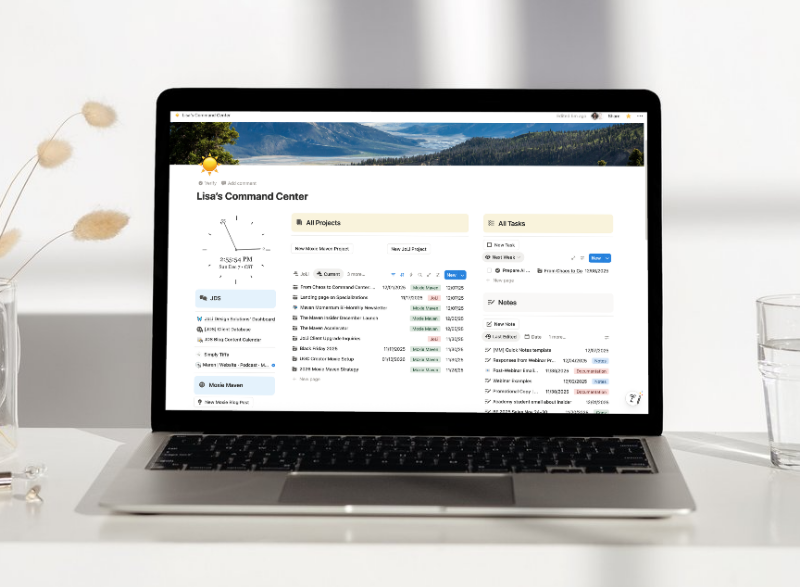
This is exactly why I teach the Notion + Moxie stack:
- Notion = your Command Center (planning + visibility)
- Moxie = your operations engine (client workflows + delivery)
Notion is where you think. Moxie is where you execute. And when the two work together, you get something magical: A business that runs like a business (even if it’s just you).
The big idea: plan in Notion, deliver in Moxie
Here’s the simplest way to think about it:
Notion is for:
- Your “big picture” plan
- Strategy notes and client research
- Your content engine (ideas → drafts → publish)
- Project oversight across multiple clients
- Your knowledge base (SOPs, templates, swipe files)
Moxie is for:
- Inquiries, pipelines, and client status
- Contracts, invoices, proposals
- Project templates and task execution
- Client portal delivery and communication
- Automations (so you stop sending the same email 100 times)
If you’ve ever tried to make one tool do everything, you already know how this ends: You overbuild it… then you avoid it. So instead, we give each tool a job.
The Command Center Workflow (Plan → Deliver → Follow Up)
This workflow is the same one I shared in my “From Chaos to Command Center” training: a 3-piece stack that eliminates the “47 open tabs” situation.
Below is the practical, web-designer-friendly version.
Step 1: PLAN in Notion (before you touch anything else)
Before you start building tasks, forms, templates, or automations… you need a plan.
Not a 12-page business plan. A “tell me what’s happening” plan.
What to build in Notion (your Command Center foundation)
At minimum, you want five core databases:
- Projects (what’s active, what’s upcoming, what’s on hold)
- Tasks (what you’re actually doing today/this week)
- Notes (meeting notes, call prep, random ideas)
- Resources (templates, swipe files, links, SOPs)
- Areas (ongoing categories like Marketing, Client Delivery, Admin, Education)
When those are connected, you stop losing things. Not because you’re “more disciplined,” but because your workspace is set up to catch your work.
The two most important views for your Command Center dashboard
If you only create two views, make them these:
- Today / This Week (your daily game plan)
- Active Projects (so you stop forgetting what’s in motion)
You’re aiming for: open Notion → instant clarity.
What goes into Notion for client projects
Use Notion for the “deep work” layer:
- Discovery call notes
- Website strategy notes
- Copy and messaging drafts
- Sitemap planning
- SEO notes and research
- Link and asset collection
This keeps client thinking work organized without dumping more “stuff” into Moxie.
Quick Win
Quick win: Do a 10-minute Notion vs. Moxie split (so you stop duplicating work).
In Notion, create a page called “Notion vs Moxie Split”.
Add two headings:
Stays in Notion (planning + thinking) and Lives in Moxie (client execution)
Under Stays in Notion, add 5 bullets:
- Call prep + meeting notes
- Project strategy + research
- Copy drafts + page outlines
- Content ideas + content calendar
- Templates + swipe files
Under Lives in Moxie, add 5 bullets:
- Pipeline stage + lead status
- Agreement + invoice
- Project template tasks + due dates
- Client portal deliverables
- Automated follow-ups
Circle ONE bullet you’ll set up today (and ignore the rest).
Step 2: Deliver in Moxie
Now that your plan exists, Moxie becomes the execution engine. If you’re a web designer, your Moxie setup should support two things:
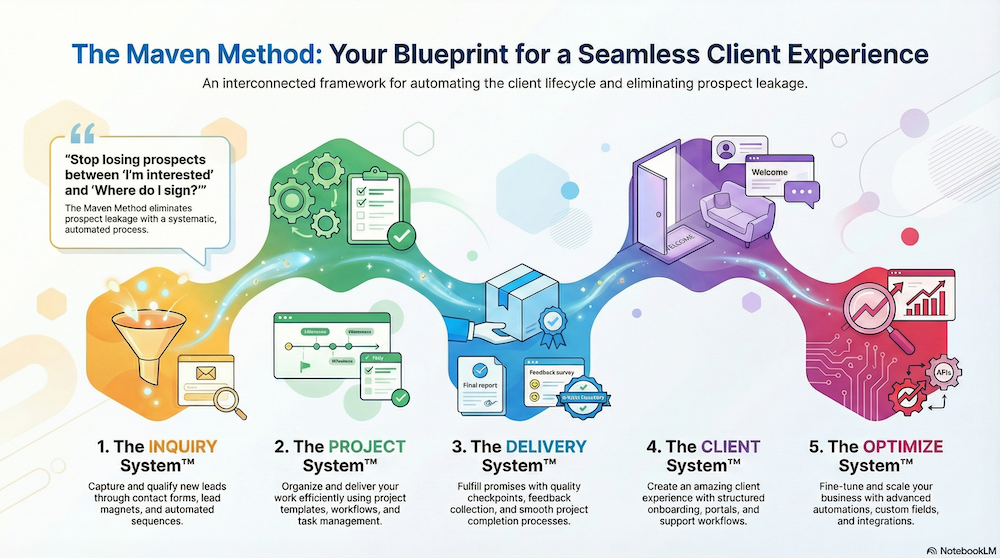
- A clean inquiry-to-onboarding process
- A repeatable delivery process you can run on autopilot
Phase 1: Inquiry → Project Kickoff
This is the part most people “wing,” then wonder why things feel chaotic.
In Moxie, you’ll want:
- A simple pipeline (5 stages max to start)
- An inquiry form + scheduler that collects what you need
- An agreement template that sets boundaries
- Invoices that don’t require manual follow-up
- A kickoff process that feels the same every time
Phase 2: Active Project → Launch → Offboarding
This is where project templates save your sanity.
In Moxie, you’ll want:
- A project template for your signature web design package
- Tasks with due dates (and client to-dos when appropriate)
- Automations that move the project forward when key actions happen
- A clean offboarding workflow so projects actually close
Your “inventory” is the secret weapon
If your Moxie setup keeps stalling, it’s usually because you don’t have an inventory of what you need. In a clean Moxie workflow, you’re intentionally building (and reusing):
Email templates
Organize them by stage:
- Lead capture and inquiry
- Client onboarding
- Project communication
- Project completion
Forms
Examples:
- Inquiry form
- Brand or strategy questionnaire
- Content collection form
- Design feedback form
- Launch checklist
Schedulers
Examples:
- Discovery call
- Kickoff call
- Review call
You don’t need 50 templates. You need the right 10–15.
Moxie Maven truth: Everything in Moxie is connected… so if you build out of order, it gets messy fast. Build your foundation first, then add automation.
Step 3: Follow Up
Follow-up is where most web designers lose revenue. Not because they’re bad at it, but because they’re busy. The fix is simple: follow-up can’t live in your brain.
Here’s how I like to split it:
Use Notion to track follow-up priorities
In Notion, you’re tracking:
- Who you need to check in with this week
- Which projects are at risk
- Which leads have gone quiet
- Which content you want to repurpose
This is visibility work.
Use Moxie to execute follow-up automatically
In Moxie, you’re executing:
- Pipeline-based follow-ups
- Automated reminders
- “Agreement sent” nudges
- Invoice reminders
- Post-project testimonial requests
If your follow-up process depends on your mood, your energy, or your memory… it’s not a process. It’s a gamble.
What this looks like in real life (a simple example)
Here’s a clean, realistic scenario:
New inquiry comes in
- Moxie captures the inquiry and schedules the call.
- Notion stores your call prep notes and any research.
Client says yes
- Moxie sends the agreement, invoice, and onboarding steps.
- Notion becomes your “project brain” for strategy, copy, and assets.
Active project begins
- Moxie runs your project template (tasks, due dates, client to-dos).
- Notion tracks high-level status, notes, and content planning.
Project wraps up
- Moxie triggers offboarding emails, feedback requests, and next-step offers.
- Notion captures lessons learned and reusable resources for next time.
Common mistake: using Notion instead of Moxie (and then hating it)
If you’re already using Moxie (or you want to), don’t rebuild Moxie inside Notion.
Notion is not your client portal.
Notion is not your invoicing system.
Notion is not your “agreement sent” tracker.
Could you do it? Sure.
But the point is to reduce admin work, not create more.
The easiest way to get started (no overwhelm)
If you’re reading this and thinking, “Okay… I love the idea, but I don’t know where to start,” do this:
- Pick ONE area to clean up first.
- Build the minimum Notion dashboard that gives you visibility.
- Build the minimum Moxie workflow that delivers your signature service.
Then iterate. Because progress beats perfect every time.
Want the template + the walkthrough?
If you want to steal my exact framework, you have two easy options:
- Watch the replay: From Chaos to Command Center (Notion AI + Moxie working together)
- Build your Notion HQ: For Web Designers (course)