Moxie for Photographers: The Real Reason It Feels “Off” (and How to Fix It)
If you’re a photographer trying to make Moxie CRM match your process, you’re not imagining the friction.
Most photographers don’t run projects that start immediately after someone books. The reality is:
- People book weeks or months in advance.
- The “work” doesn’t happen until after the shoot.
- Your client experience is driven by a session date, not a “project start date.”
So when you set up Moxie like a traditional service project (create a project right away, assign tasks right away, due dates start ticking immediately), it can feel like you’re constantly staring at a messy task list full of jobs that aren’t actually active yet.
Here’s the fix: you don’t need to abandon Moxie. You just need to stop anchoring your workflow to the wrong thing.
The Core Problem: Photographers Have Two Phases (Not One)
What most photographers are describing is really two distinct phases:
- Booked + Waiting This phase is mostly “hold the spot, take the deposit, keep the client warm, confirm details.”
- Active Production This phase is where tasks matter: editing, previews, galleries, delivery, print orders, follow-up.
When Moxie feels clunky, it’s usually because everything is being forced into one big “project timeline,” when your business actually runs on two different rhythms.
Route A: In Moxie, Use the Session Date as the Anchor, Not a Project Start Date
Instead of creating a full project the moment someone books (and letting it sit there for 2 months), treat the session date as the real driver. This is what you’ll use in your Agreement Template for the project start date.
What this looks like in practice
Keep the client in the pipeline during the waiting period, and only “spin up” the task-heavy project when it’s actually time.
- Use pipeline stages to manage the waiting period and trigger automations
This matches the way automation works best: you standardize the “stage,” then you trigger actions off a change in status.
Sample photographer-friendly pipeline stages
You can keep this simple. For example:
- Inquiry
- Book Session (Waiting)
- Prepare for Session (Confirming)
- Post Session
- Completed
Notice what’s happening here: “Booked” and “Prepare for Session” are not task-heavy. They’re tracking stages and workflow automations can be set for the stage(s) you need.
What to track during “Booked Session (Waiting)”
In this phase, you usually only need a short list of admin items:
- Contract signed
- Deposit paid
- Session date confirmed
- Location confirmed
- Questionnaire sent (change the stage to “Prepare for Session”)
That’s it. This phase needs reminders and a calendar view of what’s coming, not 47 tasks.
The move that removes the friction: delay the project
When the shoot happens, you move the opportunity to “Post Session”, and that stage change becomes the trigger to:
- Create the project with your post session tasks
- Assign tasks
- Due dates will start from that moment, not from booking day
This keeps your task list clean and prevents the “90 open projects” problem.
Route B: Notion Tracks “Booked + Waiting,” Moxie Runs Contracts + Payments + Active Production
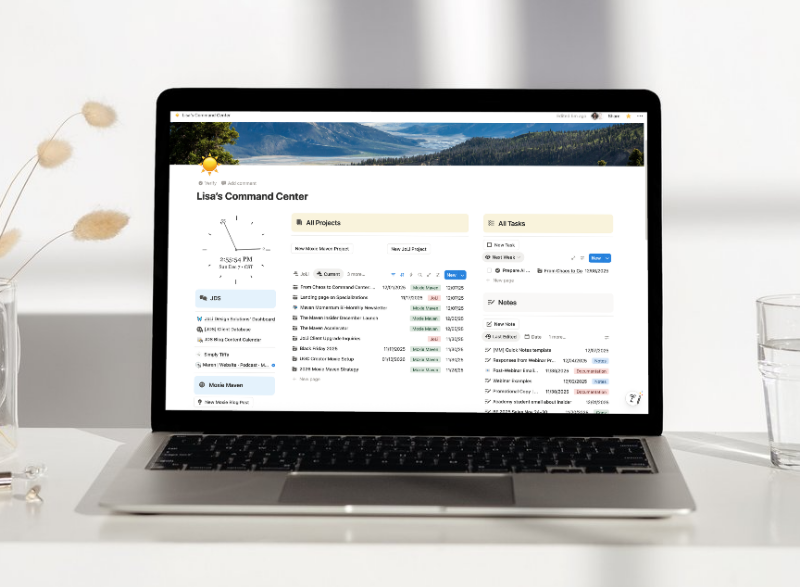
Some photographers book so far out that they need a calendar-first command center.
In Notion (your visibility + calendar)
Use Notion as the “what’s coming up?” dashboard:
- Client name
- Session type (family, branding, wedding, etc.)
- Shoot date (Calendar view)
- Location
- Status: Booked (Waiting) → Confirming → Shot → Editing → Delivered
- “Next action date” (example: questionnaire goes out 14 days before)
In Moxie (your operations engine)
Use Moxie for:
- Agreements
- Invoices and payment plans (deposit now, remainder later)
- Client communication and portal (if you want it)
- Projects and tasks only when the job is active
This hybrid is especially helpful if you’re fighting the “tasks sit forever” issue.
Notion Command Center for Web Designers + Service Providers
Route C (Moxie-Only, But No Task Clutter): Split Your Templates in Two
If you want to stay fully inside Moxie, but you hate seeing “inactive” tasks sitting in your dashboard, this is the simplest shift:
Stop building one giant template that starts at booking.
Instead, build two templates:
- Booking Admin Template Keep it short:
- Contract signed
- Deposit paid
- Questionnaire scheduled
- Session date and location confirmed
- Post-Shoot Workflow Template This is your real task list:
- Cull
- Edit
- Sneak peeks
- Deliver gallery
- Print order follow-up
- Testimonial request
Then you only apply the post-shoot template once the shoot happens.
The Real Fix: Separate Reminders From Tasks
Here’s the truth: during the “booked and waiting” phase, you usually don’t need tasks. You need:
- A date-driven view of upcoming shoots
- Reminders tied to timing (14 days before, 7 days before, etc.)
- Light-touch follow-ups (confirm location, confirm payment, confirm timeline)
- Set Pipeline To Dos for this part
Tasks are for production.
Once you separate these two, Moxie stops feeling like it’s fighting you.
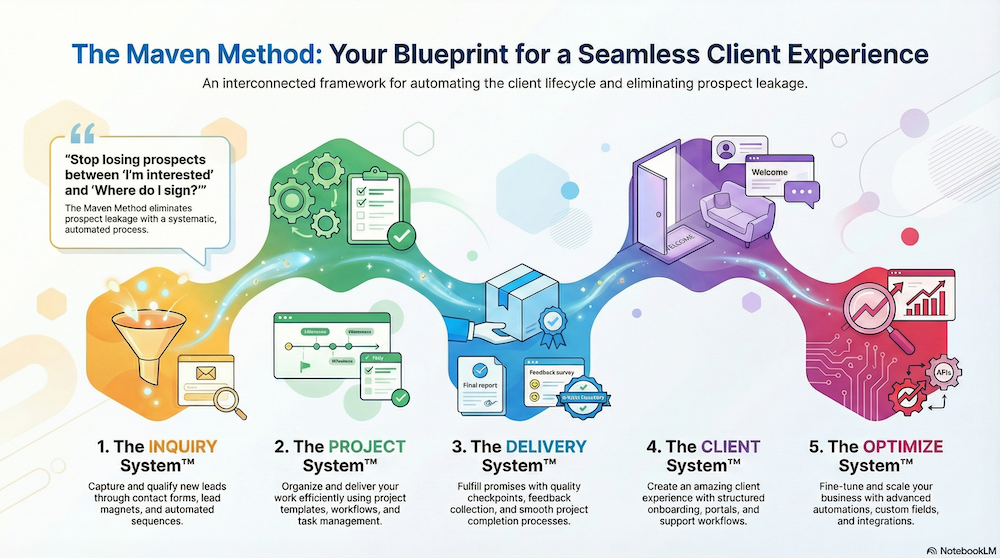
The Moxie Maven Academy
Example: A Clean, Low-Friction Workflow You Can Copy
Phase 1: Booked → Shoot Day (3–7 steps max)
- Send contract + invoice
- Confirm deposit received
- Confirm shoot date + location
- Send questionnaire (timed)
- Send “what to expect” email (timed)
- Confirm final payment (timed)
Phase 2: Shoot Day → Delivered (your real checklist)
- Cull
- Edit
- Send sneak peeks
- Deliver gallery
- Print order follow-up
- Closeout email + testimonial request
Your Next Step
- Write your workflow as two checklists:
- Booked → Shoot Day
- Shoot Day → Delivered
- Choose one route:
- Route A: Moxie pipeline stages + delayed project creation
- Route B: Notion for booked visibility + Moxie for contracts/payments + active workflow
- Route C: Moxie-only with two separate templates
Once you have those two phases written down, your Moxie setup becomes obvious—and the friction disappears fast.